.svg)

Delivering
Before you head out
Tote bags will be dropped off at your business and contain the packages you will deliver to customers that day. You are required to be at your business to receive the tote and packages. Packages may not be left unattended outside of your business. Packages must be kept in a neat, dry, secure, and clean area at all times.

Scanning packages
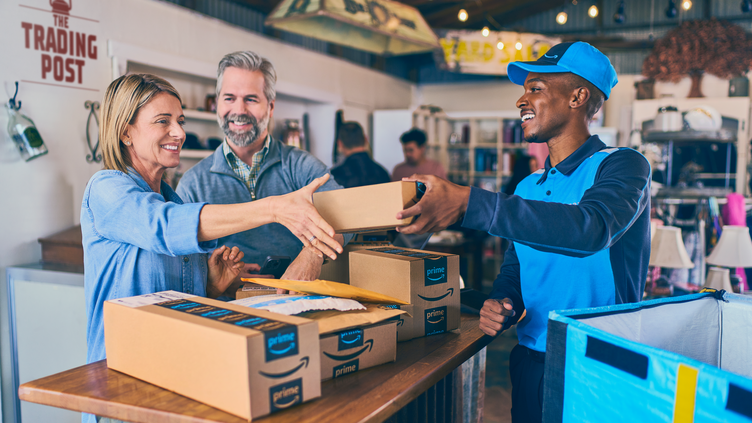
Scan the tote bag(s) and any remaining packages into the Hub app to confirm packages are at your location.
- Open the Amazon Delivery app, navigate to Pick up, and select Schedule → Ready to deliver → Stay on duty and continue → Start new pickup.
- Scan the tote(s) and any remaining packages into the app to generate your route.
- Swipe to finish and tap Start travel to begin making deliveries.
If scanning errors occur, refer to the Troubleshooting section in this guide.
Make deliveries quick and efficient
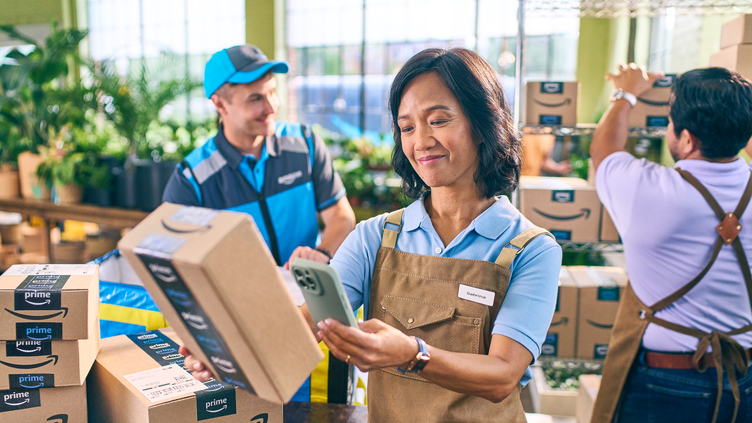
Here are a few best practices to help streamline the delivery process:
- Sort packages: Packages arrive unsorted. Each Hub Partner develops their own sorting strategy. Here are three commonly-used methods:
- Directional Sorting: Divide packages by compass directions (North, South, East, West) to create geographic zones.
- Geographic Boundary Sorting: Use natural boundaries (rivers, highways) to create delivery zones and minimize backtracking.
- Balanced Distribution Sorting: If you have multiple Delivery Associates (DAs), divide packages evenly between them for balanced workloads.
- Group deliveries by location (North, South, East, West) or by street name or number. Use both the Map and List view when packages are in the itinerary.
- Distribute packages evenly: Balance the number of packages between DAs to make the workload manageable.
- Organize small packages: Group small items (like poly-bags) into clear plastic containers for easy access.
- Find timed packages: In your itinerary, make note of business addresses on your route and prioritize delivering to them within their business hours.
- Use SAL (Sort assist labels): Use the yellow labels on boxes to group packages by letters, then numerically from smallest to greatest. Stops will be organized by letter followed by number, so keep early stops close-by.
Please return the totes to your Supply Route driver on the following day.
For more delivery best practices and tips on optimizing your deliveries, check out the Learning portal in the Amazon Delivery app by clicking Main menu → Learning Portal → Library.
Amazon branding
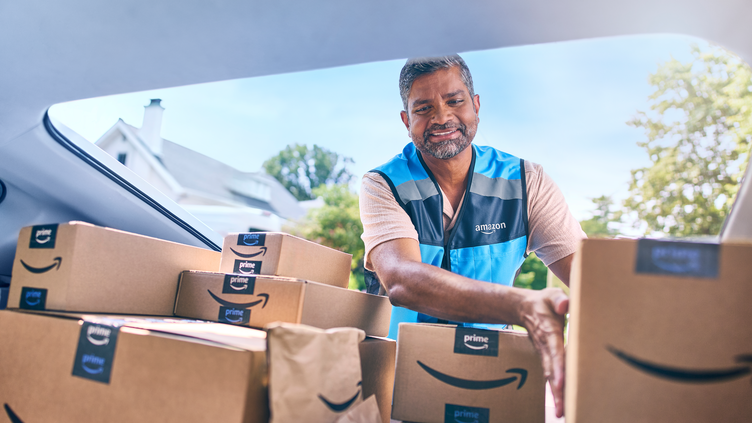
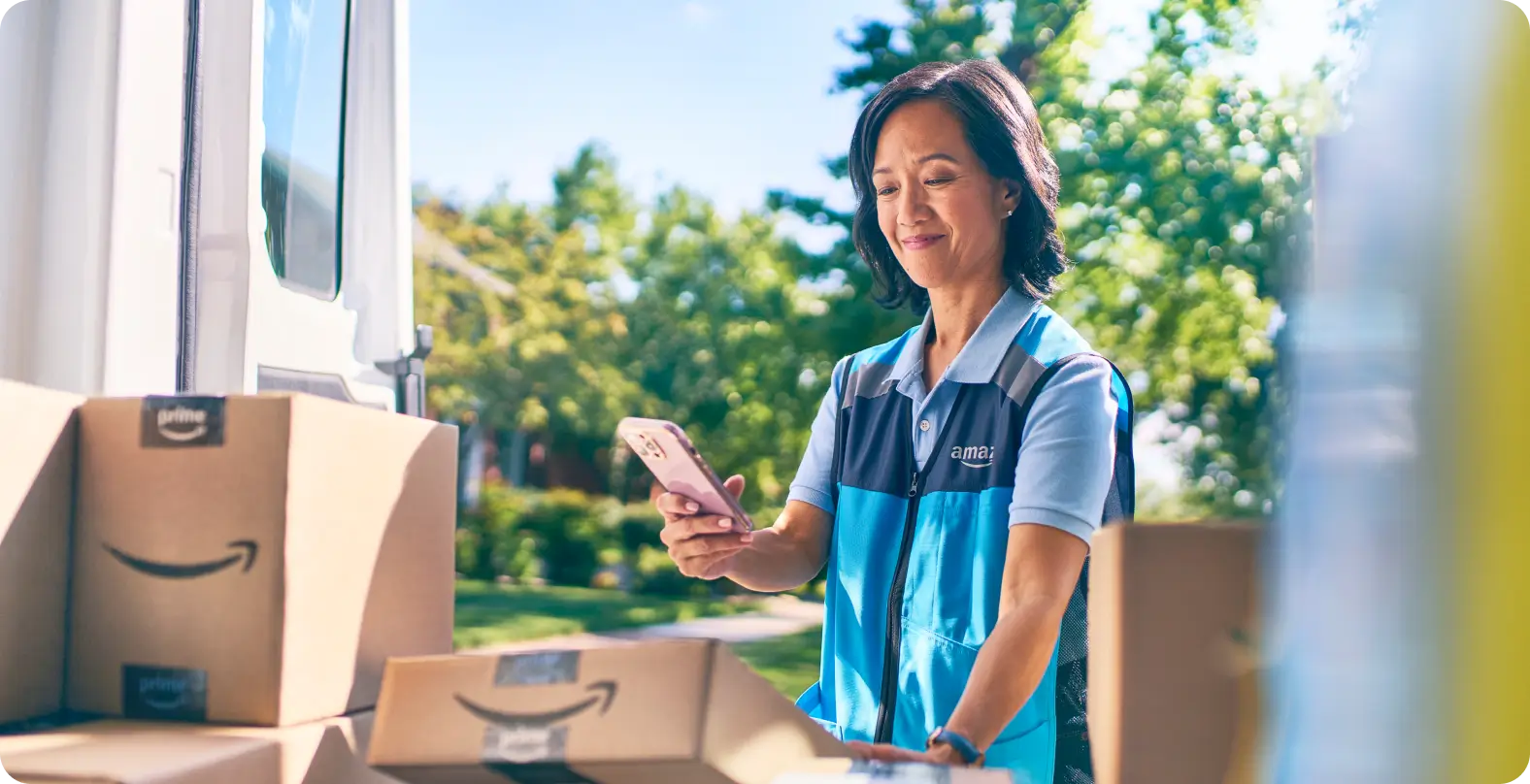
Using the branded vests and hats from your welcome kit will make customers aware that you and your DAs are delivering Amazon packages.
Making deliveries
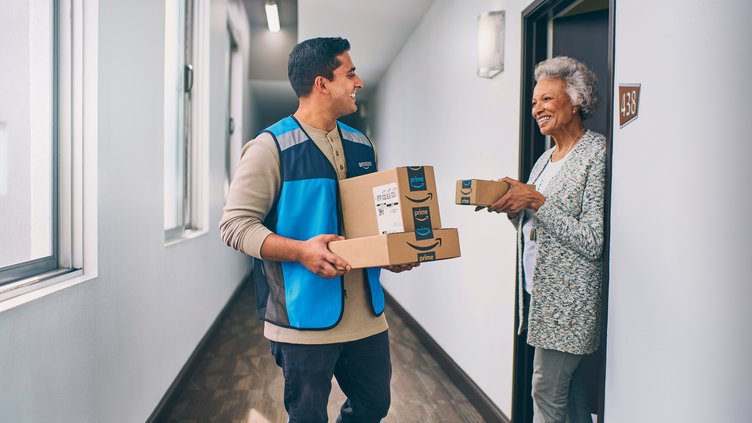
- Select Start travel and begin navigating to the location on the screen.
- After arriving at the location select I've parked and review notes to verify the address.
- Press Continue with package, match the code on the app to the package in your vehicle, scan the package, and proceed to the drop off location.
- Select precise delivery location based on the customer specific preferences or protection from weather.
- Take a clear, well-lit photo and avoid capturing personal information or people.
- Swipe to finish.
Finishing your deliveries
When all packages are delivered, your store in the Hub app will automatically close. If packages remain in your itinerary, follow these steps to close your store:
- Open the Hub app. Click on Main menu → Daily summary.
- Scroll to the bottom and click Close store.
- After completing deliveries, check the Daily summary to verify all packages are marked with the correct status.
If you were unable to complete a same-day delivery or had a package delivery question, contact off-road support