.svg)

Application guide
Step 1: Setup your account
Use an address not linked to an Amazon Flex, shopping, or DSP account. If needed, create a new one specifically for Hub Delivery.
Step 2: Login
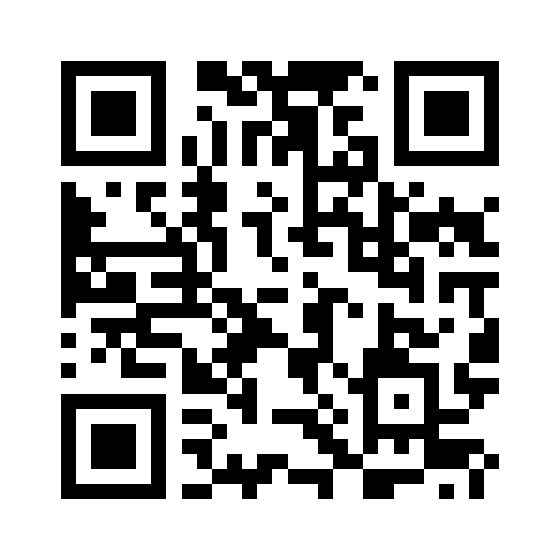
Scan the QR code or tap the blue text below to download the Hub app
You'll be redirected to the Apple App Store (iPhone) or Google Play Store (Android). After installing, open the app to start your Amazon Hub Partner application.
Tap the below button to download the app:

You'll be redirected to the Apple App Store (iPhone) or Google Play Store (Android). After installing, open the app to start your Amazon Hub Partner application.
Or, go to hub.amazon.com/counter and login using your Amazon account email and password.
Step 3: Enter your personal information
Fill out the basic personal information:
- First Name and Last Name
- Date of birth
- Address
- Phone number
Step 4: Enter your basic business information
Click the arrow next to "Basic information" and complete the following:
- Business name (include LLC/Inc. if needed)
- Doing Business As (DBA) if applicable
- Business address
- Store details
The info must match exactly with what's on your state registration. You may be asked to upload proof for your DBA.
Step 5: Add your payment information
Enter your bank account and routing numbers (no special characters or spaces) for weekly payments and direct deposit.
Step 6: Complete the tax interview
Answer a short questionnaire to set up payments. You’ll be asked if you’re a “U.S. Person” — click the info icon if you’re unsure. Click “Exit interview” when done.
Step 7: Background check
A background check will be conducted by our partner, Accurate. The owner, the person providing consent, and Delivery Associates (DAs) will need to complete a background check. Each of you will receive a separate email and texts when the process begins.
What you’ll need:
- A valid government issued driver’s license or ID
- Exact personal details (full legal name, date of birth, social security number)
Note: Accurate will complete a criminal history and motor vehicle report search.
How to complete a successful background check:
- Enter your full legal name exactly as it appears on your driver’s license.
- Verify all information in Section 1 of the application is correct, especially your name and address, as the background check pulls from this section.
- Complete the full form with your details and click Submit.
Note: If you need to provide additional information, contact Accurate after submission at 800-216-8024.
Step 8: Program terms and agreements
Once you’ve submitted your background check you can review and accept the program terms and agreements directly in the Hub app
Step 9: Training and Onboarding Delivery Associates
Once your background check is complete, you’ll be able to begin your Hub Partner Learning and begin to onboard Delivery Associates.
Step 10: Sign payment terms
After you complete your trainings and onboarding DAs, sign the payment terms directly in the Hub app.
You’re done!
We will review your application and reach out within 3-5 business days with a status update.
Next steps
Step 1. Hub Partner onboarding
If your business meets the requirements and is approved, we'll send you communication to start the onboarding process to become a Hub Partner.
Step 2. Gather your business documents
You will need to present business documents within 30 days after you launch as a Hub Partner. Use this guide to understand the business documents you'll need to provide. Have them ready so you can submit them when our team reaches out.
Need additional help?
Call (855) 953-9052, text (888) 402-5642 to contact our team, or email us at hub-delivery@amazon.com